Connecting speakers to your Windows PC
We'll go over the most common speaker types and how to connect them seamlessly to your Windows PC.
Note: Most often, Windows will automatically select a newly plugged-in audio device as your audio output, however sometimes we have to do this manually. To do this, right-click the speaker icon on your taskbar, select Sound Settings. From there you can select the audio output source you desire.
USB powered speakers
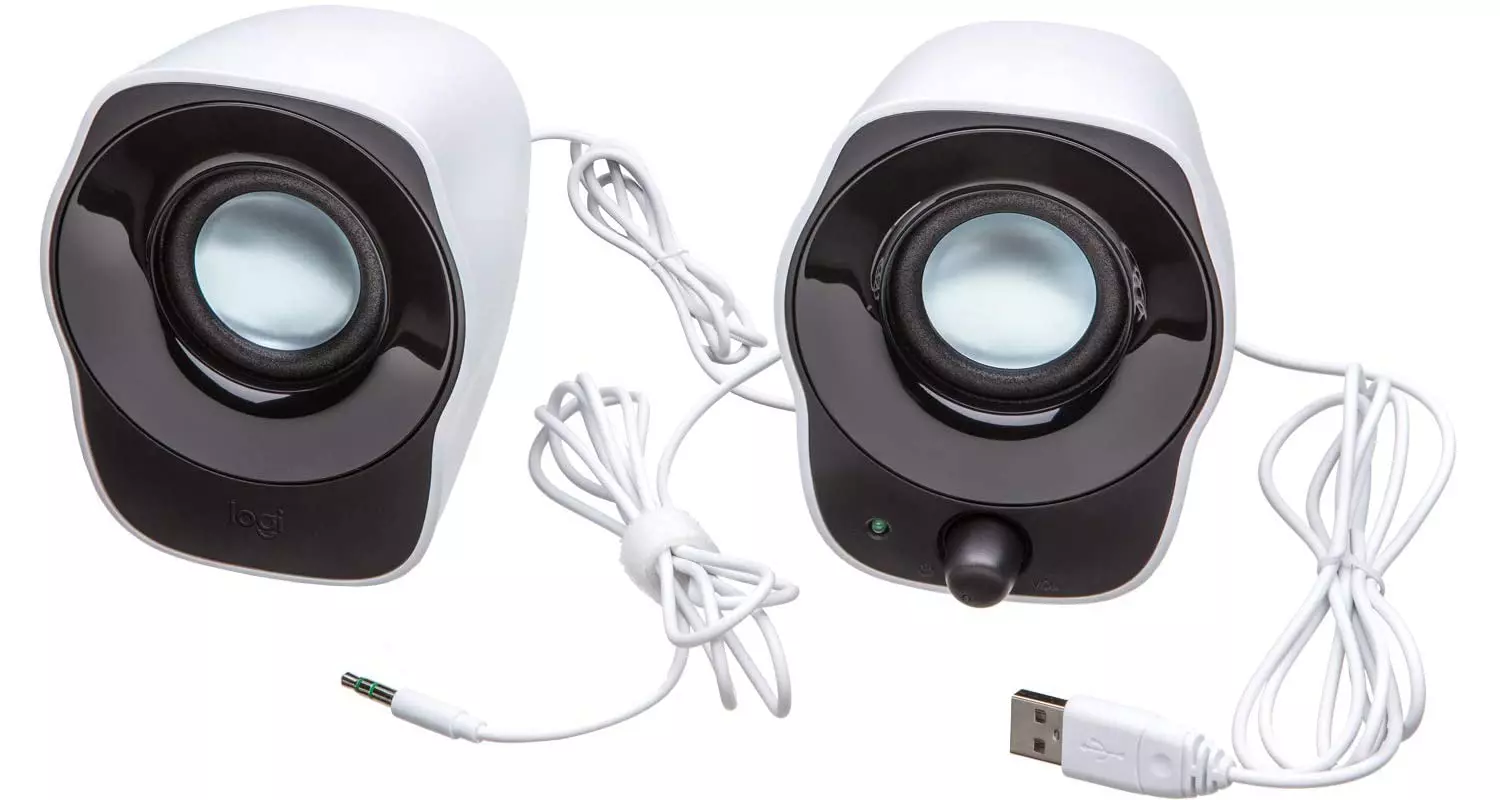
Some PC speakers are simply USB powered and as the name suggests, connect digitally to a PC via the USB port.
Luckily, this is a fairly straight forward process:
- Connect one end of the USB cable to the PC
- Connect the other end to the speaker (if necessary, most often the other end is hard-wired to the speakers)
It is worth noting that USB powered speakers act as their own interfaces and have built in digital-to-analogue converters. The digital audio is outputted by the PC via the USB port; travels through the USB cable, enters the DAC (digital to analogue converter) of the speaker, gets amplified and then drives the speaker (you get audio playing).
Although most USB speaker models will be Plug & Play experiences, you may have to install or update the drivers to get them fully functional. Generally speaking this would only be true of higher-end models, which should detail the methods necessary for the best and fullest experience via their user manual.
Internal Audio Interfaces (3.5mm ports)
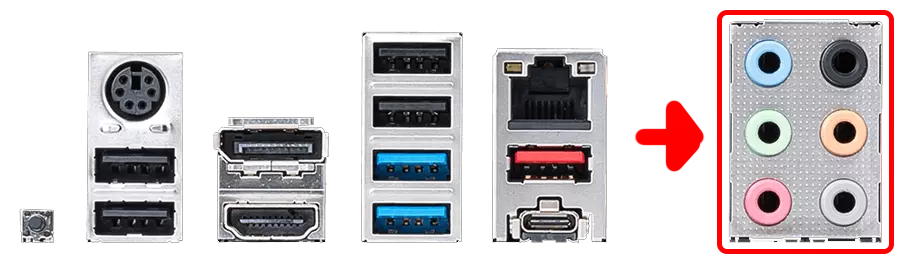
Motherboards almost always have at least a few of these ports. If the computer has these outputs, its sound card will have a DAC (Digital to Analogue Converter).
Note that speakers connect this way should have internal amplifiers or there should be an amplifier added to the mix. PCs will generally output line/headphone levels which are too low to drive speakers properly by itself.
To connect to the internal audio interface of the PC, we must locate an analogue output. This is typically the 3.5mm headphone jack (often green and/or signified with a headphone icon) on the PC. Generally speaking the ports at the rear of the PC will have a cleaner signal, so keep this in mind if you find a lot of static noise coming through the front ports.
If you have a 5.1 speaker setup, you may need to plug in more than just the one green plug to fully pull off the 5.1 effect and have all speakers driven. Your motherboard user manual will detail this, but it should be fairly straight forward once you've got to this point too.
Bluetooth
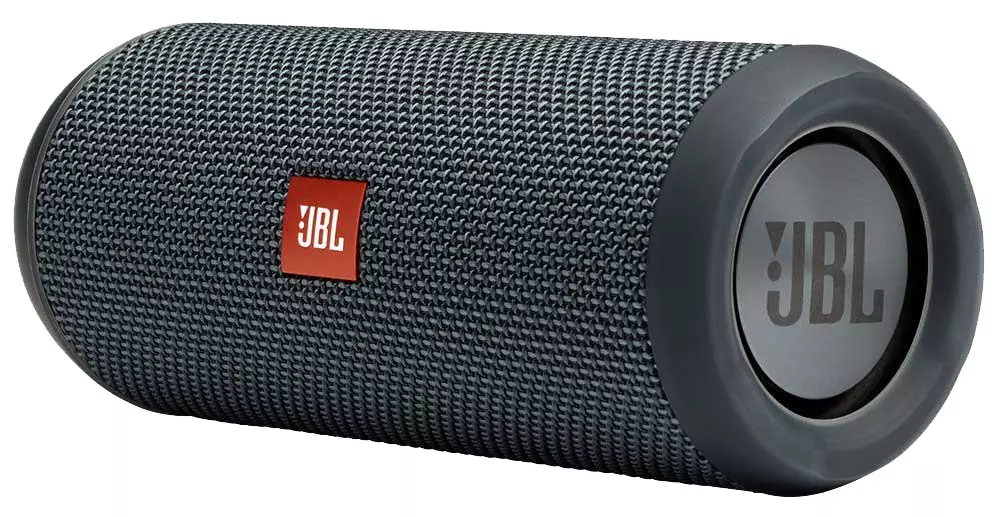
While Bluetooth speakers are popular because of their diverse use cases, they haven't been a standard for PC speakers for very long, and not all desktop PCs come with Bluetooth by default!
The term pairing is used when connecting Bluetooth devices together. Let's get into how to pair a PC with a Bluetooth speaker.
Firstly, your PC must be Bluetooth compatible.
To start connecting, make your PC discoverable, which you can do by making sure it is not connected to any other devices.
Now, pair the PC to the Bluetooth speaker by going to Settings > Devices > Bluetooth & Other Devices, click on Add Bluetooth or Other Device and then click on the speaker's name/identifier.


 6 Mediterranean Circuit, 3173 VIC
 Monday - Friday 10am-6pm
 +61 (03) 9020 7017
 ABN 83162049596
 Evatech Pty Ltd