Solutions to a GPU running extra hot
According to Nvidia, the standard operating temperature range of a graphics processing unit (GPU) is 104°F to 194°F (40°C to 90°C). If your room temperature is 68°F (20°C), your GPU should always be feeling warm or hot at any given time. However, your GPU should not get too hot.
There are a few factors that may be at play if your GPU seems to be running hotter than it should or used to.
- The task(s) your PC is being asked to do is putting the GPU under load and making it work hard.
- Your GPU fans may be hindered (either entirely if not able to spin at all, or if there's dust build up it would be reduced).
- Your GPU may not be receiving enough cool air/airflow to resolve its own temperature build-up.
How to check GPU temperature?
All major operating systems have features enabling you to check the GPU temperature conveniently.
In addition to this, every respected GPU brand has dedicated tools, whether it be apps or overlays to facilitate the same, with MSI's Afterburner perhaps being one of the more popular ones, even for those who don't necessarily have an MSI GPU.
Since we currently are only offering Windows 10 & 11, we'll only describe how to access the temperature on these operating systems. You can check the temperature through Task Manager.
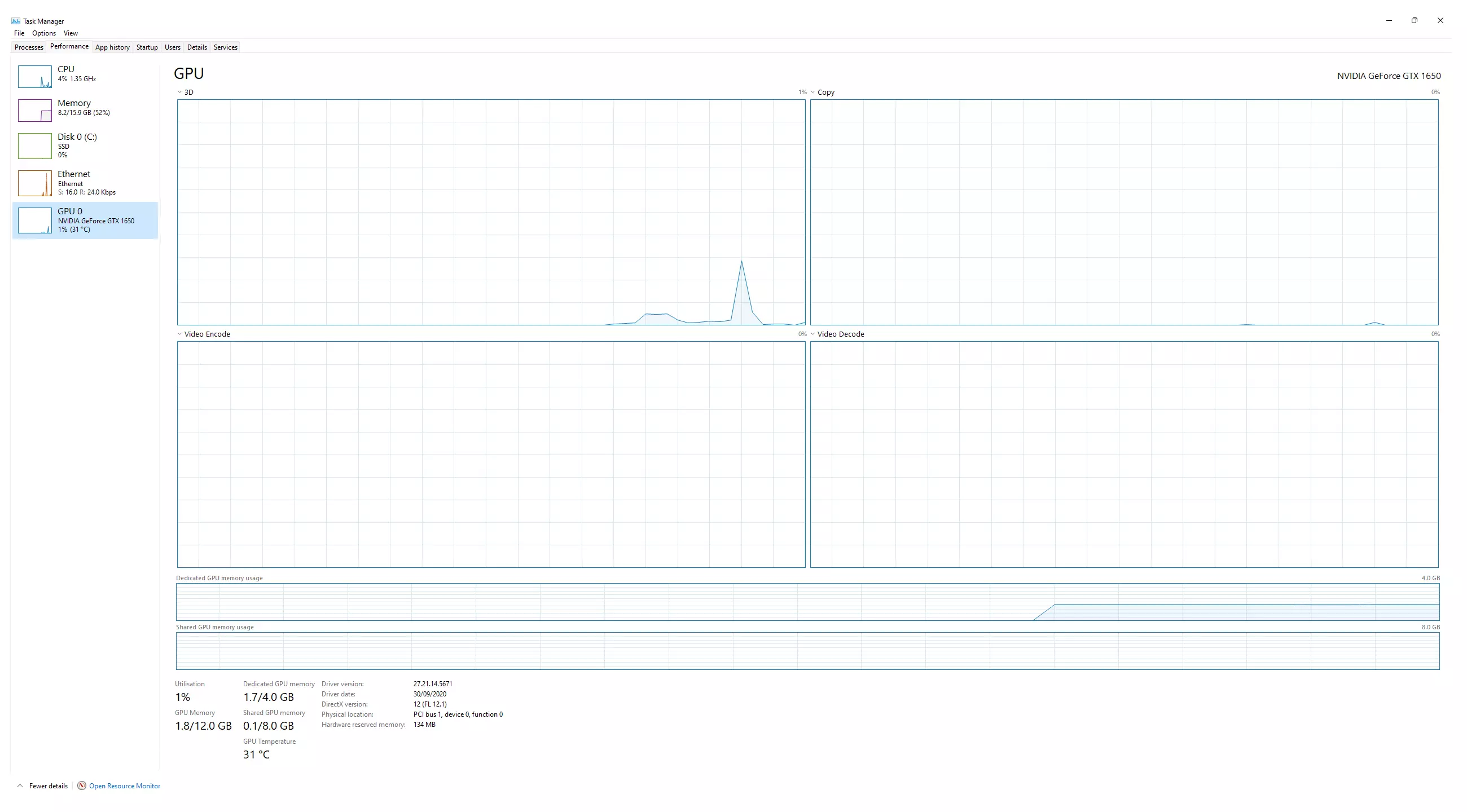
Why is my GPU so hot at idle?
Your GPU could be hot while idle due to improper fan speed settings, graphics-intensive processes, software running in the background, and voluntary or involuntary overclocking. Undoing these or restoring the default settings can solve the GPU overheating issue.
In general, when idling, your GPU should be no hotter than 40°C. If it is though, look at the contributing factors, such as if it's a hot summer's day and it's warm inside too. GPUs can't run cooler than the ambient room temperature, so the room temperature is basically the minimum the GPU can be, but it will always be at least a few degrees above that, most likely 10°C-20°C higher actually.
GPUs and CPUs themselves don’t make noise, but there might be some noise associated with their power delivery (and how it fluctuates reasonably quickly), and there'll definitely be noise from the GPU's fans/cooling solution, which also fluctuates based on need.
As a result of overheating, games, videos, and other graphics-intensive applications may not run smoothly. You may perceive this as stuttering, frame drops, lag, etc. which isn't a GPU fault, but an indication that perhaps you need to turn some of the graphics intensive settings down a touch. Or if it only really happens during intense scenes which come by every now and then, you can probably leave things as they are.
Dusty heatsink
Most of the time it's as simple as blowing some carefully aimed compressed air at the affected areas (fans, heatsink, and overall to remove surface dust) but it can be tricky without causing unintentional damage.
Evatech offers a dust cleanout service, which you can check out here. Otherwise, the only way to avoid this is by not letting your system get dusty in the first place... but that is easier said than done!
Overclocked GPU
All computers have a clock rate, also known as clock speed, or processor speed (usually measured in GHz, or MHz).
Overclocking increases the speed of the core(s) and enhances the processing power of a GPU. Some manufacturers overclock GPUs straight out of the factory so customers don't need to change any settings to get better performance.
Users often voluntarily overclock their GPU for better performance. Overclocking is among the most common causes of GPU overheating. You should undo or reset all settings back to default if you want things to go back to normal.
How do I fix my GPU's overheating issue?
If you have changed settings in an attempt to overclock, then it's best to reset the overclock. You can use MSI Afterburner or GPU-Z to check if your GPU is overclocked.
You can use the same tools that did the overclocking to undo the overclocking.
Here is a helpful video about how to fix a bad overclock on any GPU from JayzTwoCents: https://youtu.be/-qn6sf-U2rQ
Obstructed airflow
With your PC off and disconnected from power, check inside your PC for signs of loose cables/plugs and if there's any cables that might be too close to fans, etc. Fans need a bit of space to run effectively, so not having something else hard up against them is important. You can also turn your PC on and have a look inside to see if all the fans are spinning as they should.
I think I need more help!
As above, we offer a dust cleanout service, as well as troubleshooting/diagnosis, so feel free to put us to work if you're not entirely sure!


 6 Mediterranean Circuit, 3173 VIC
 Monday - Friday 10am-6pm
 +61 (03) 9020 7017
 ABN 83162049596
 Evatech Pty Ltd